Saturday, March 06, 2010

Kindle File Management

Originally posted March 6, 2010 by Cindy O'Neal

Copying files from your computer to your Kindle doesn't need to be a personal curse. With a few basic file management and multi windows skills you can be comfortable browsing and copying files soon. The key is practice. Do it as many times as you need to be comfortable with the procedure. After all, if you want to take advantage of all the great free book resources out there in cyberspace, you need to develop certain skills, and file management is at the top of the list.

The most important part of file management is knowing exactly where your file (the little bugger) is at all times. On your computer, if you create the document yourself, it will usually end up in the Documents (or My Documents) folder, unless you save it somewhere else. Your Documents folder is pretty easy to get to by clicking the Start button on a Windows computer, then looking up and to the right for the Documents folder shortcut. Click it once to open. If it is a file you downloaded (like a nifty book from manybooks.net), I hope you downloaded it to your Desktop so it will be easy to spot and drag to your Kindle when the time is right.  If you are getting nervous right about now, rest assured I will be covering Downloading from the Internet for both Internet Explorer as well as Firefox in future articles. The bottom line is, you must know where your stuff is. Pay special attention when you save a file. Take your time. Look at the little save window that comes up. It always tells you where that file is going, and it always gives you a chance (with a few mouse clicks) to put it somewhere else. It's up to you to make the choice. 

I like to use my Desktop (the main computer screen) as a staging area for things I download. Then, if it is a book, it will go to the kindle, then the copy on the Desktop will be moved to a more permanent storage in another folder I have created just for books I have downloaded.

To transfer (copy) a file to your Kindle:
  1. Connect the Kindle to your computer with the supplied USB cable
  2. If you are using Windows (XP, Vista, Windows 7), a little popup window will appear asking you what you want to do... Choose Open folder to view files by left clicking those words.
  3. This will cause another window to appear with the folders on your Kindle showing. Look for and double click to open the Documents folder. You should see your books listed. The best view is Details. Click the word View at the top of the window, then the word Details. This way you can see your books listed alphabetically, straight down the window. Make sure this window is NOT filling your screen. You need to be able to put your mouse in the Title Bar of the window and (while holding down the left mouse button) drag it to move it. The Title Bar is the very top part of any window. You should see the title of the window you are working with in it. The X to close the window is on the same level. If your window is filling the screen you will not be able to drag it anywhere.
  4. Move the Kindle window out of the way and find the book file you want to put on it.
  5. Right click on the book file and choose the word (single left click) Copy.
  6. Move your mouse pointer to the Kindle Documents folder and right click in an empty white area inside that folder. Choose Paste.
  7. You should see your book file listed in your Kindle folder now. Disconnect your Kindle and your new book should be listed at the top of your Home page.

Another way to copy files from one place to another is to left click on the file and (while holding down the left mouse button) drag it to the other window. When you have your pointer where you want to drop the file, let go of the mouse button. For some people, this can get messy. Files can be accidentally dropped in the wrong place and even lost. Using the copy and paste technique can be a neater solution.

The way to really learn something new is to practice, practice, practice! After a few times, it will be more natural.

Tomorrow: Downloading 101 -- Internet Explorer
We will get a book from Manybooks.net, download it to your Desktop, then transfer it to your Kindle. Well, actually we won't. You will.

Friday, March 05, 2010

Four New Free books on Amazon

Originally posted March 5, 2010 by Cindy O'Neal
 
These four (found with jungle-search.com) sounded great and the price ain't too bad either --
Great for your GRS (gonna read soon) stack. It is a good idea to go ahead and "purchase" these free books as soon as you see them. They may not be free for long. The first Melody Carlson book I read was a freebie from Amazon... It was the first in the I Heart Bloomberg series, not a genre I would normally read, and of course got both my daughter and myself totally hooked so we purchased the other three in the series. That first book is no longer free, but because it was for a while, we have gone on to purchase other books Melody Carlson has written. Great Marketing tool... free books.

If you are reading this on your Kindle, it will be easier to just type a title you want to see with the keyboard at the bottom of your Kindle screen... then toggle your little 5-way to the right until Store is highlighted... then press in on the 5-way to go there. Before you select the book, make sure it is still free. Things change, sometimes quickly, especially in the Amazon freebies. When your book is on it way, press your Back button to get back to this article... then you can do a search for the next one.

Petals From the Sky
Product Description:
From the acclaimed author of Peach Blossom Pavilion comes a lush and lyrical novel of East and West--and of one young woman's search for her heart's true calling. . .

When twenty-year-old Meng Ning declares that she wants to be a Buddhist nun, her mother is aghast. In her eyes, a nun's life means only deprivation--"no freedom, no love, no meat." But to Meng Ning, it means the chance to control her own destiny, and to live in an oasis of music, art, and poetry far from her parents' unhappy union.
With an enigmatic nun known as Yi Kong, "Depending on Emptiness," as her mentor, Meng Ning spends the next ten years studying abroad, disdaining men, and preparing to enter the nunnery. Then, a fire breaks out at her Buddhist retreat, and Meng Ning is carried to safety by Michael Fuller, a young American doctor. The unprecedented physical contact stirs her curiosity. And as their tentative friendship grows intimate, Meng Ning realizes she must choose between the sensual and the spiritual life.
From the austere beauty of China's Buddhist temples to the whirlwind of Manhattan's social elite, and the brilliant bustle of Paris and Hong Kong, here is a novel of joy and heartbreak--and of the surprising paths that lead us where we most need to be.


Booth's Sister
Product Description:
"My brother killed Abraham Lincoln. That is my weight, my shame. While he remained at large, I was held captive in my home. I should have told the soldiers who came with guns drawn and bayonets at the ready this true thing: I might have stopped him, for I harbored him and kept his secrets. I was a pie safe locked tight and guilty as he." Asia Booth Clarke was twenty-nine years old and pregnant when Union soldiers and Federal detectives stormed her Philadelphia home in search of her assassin-brother. John Wilkes Booth's older sister had grown up in one of America's most notoriously troubled but spectacularly acclaimed acting families. "Johnny" and Edwin, her handsome brothers, were the matinee idols of the era. When John Wilkes Booth's crime left the nation in furious mourning and the Booth family under a dark cloud of accusation, it was Asia who bore the brunt. Booth's Sister was inspired by Asia Booth Clarke's personal memoirs. Author, Civil War scholar and storyteller Jane Singer has masterfully imagined the family dynamics and intimate dilemmas that led to one of America's most fateful crimes and left a sister's life in shambles.


The Someday List
Product Description:
Rachelle Covington has it all. A fabulous home, a handsome and prestigious husband, two beautiful children, and a place in the upper crust that's quite comfortable. But her life is not all it's cracked up to be. When her husband goes away on business trip and the kids are sent off to the grandparents for a month, Rachelle takes up the challenge of a dying friend to start a list of things to do before she dies. She heads back to Jubilant, Texas, to reconnect with her past, her purpose, and herself. But when her ex shows up in town looking very fine and very single, Rachelle must confront feelings she thought she'd long buried. Will she give up everything to recover the past? Or will she find a reason to plan for the future? The Someday List is an honest look at what makes us who we are and what can throw us off track. Author Stacy Hawkins Adams writes with a voice that is fresh, sincere, and completely real. Her characters jump off the page and into her readers' hearts.


As Young As We Feel (oh Lord... Another Melody Carlson)
Product Description:
Once upon a time in the little town on the Oregon coast, there were four Lindas—all in the same first-grade classroom. So they decided to go by their middle names. And form a club. And be friends forever. But that was 47 years and four lives ago. Now a class reunion has brought them all—the New York lawyer, the empty nester, the frustrated artist, and the aging starlet—together again in their old hometown, at a crossroads in their lives. They’re about to explore the invigorating reality that even the most eventful life has second acts…and there’s no statute of limitations on friendship.

Thursday, March 04, 2010

Asleep and Awake

Originally posted March 4, 2010 by Cindy O'Neal

Kindle 1, to put to sleep press the Alt and the Text key at the same time... press the same keys to wake it up

Another way to put your Kindle to "sleep" is to simply leave it alone. It will put itself into the sleep mode all by itself after a time of inactivity (about 10 minutes?)

Kindle 2 and DX, to put to sleep, slide the top switch to the right, then let go... same to wake it up.
To turn the Kindle completely off, slide and hold the top switch for several seconds until you see your Kindle go off. There really isn't any need to turn it completely off unless you need to reset it for one reason or another. The only time the Kindle actually uses any power is when you are "turning" pages, or using the Whispernet. I can't tell you (or remember) the last time I turned mine off completely... makes me nervous just thinking about it.

Toggle left - toggle right - toggle up and down for choices. When something is underlined, it is selected. Press in on the 5-way switch to make things happen. Think of it as an Enter key with benefits. The 5-way switch is the button between the Menu and Back buttons on the right side of the Kindle 2.

Wednesday, March 03, 2010

Sharing a Kindle

Originally posted March 3, 2010 by Cindy O'Neal

Sharing a Kindle with a family member in the same household is very easy to do if you are each reading a different book. The most recently added or opened books are (by default) listed at the top on the home page. Toggle the 5-way switch to the book you want to read (it will be underlined) and press in on it (think of that 5-way button doing double duty as an Enter key). The Kindle will always take you to the last page you were reading when you last opened the book. It's magic.

Sharing the same book on the same Kindle can be a little tricky, but with a few organizational skills, it is certainly possible. At the bottom of every Kindle page, you will see the Location bar. Depending on which Kindle you have, you can also tell how far you are into your book. On the Kindle 1, there were dots at the bottom of the pages for the progress indicator. I had to smile the other day when my daughter Kelly told me she only had a few dots left on her book and she really didn't want it to end.  I am so glad that Kindle 1 is still getting the love and attention it deserves. The Kindle 2 and Kindle DX show the status of your books in the same location, only instead of dots, you see a thin bar across the bottom of the page and the percentage of the book you have read so far.

The Location Numbers Location Numbers are the great equalizer at the bottom of any Kindle screen, including the screens for the Kindle IPod/Touch and PC software. These tell you exactly where you are in a book. The first number is where you are at that moment. The last number is the end of the book. When you  are reading a book, make a note of the location number when you are finished for the time being. If your spouse is reading the same book, chances are you will see a different location number at the bottom when you pick up the Kindle again. To quickly get back to your place (and your reading), press the Menu button, then toggle the 5-way down until Go to Location is underlined. Press in on the 5-way. You will see a place to type appear at the bottom of the screen. Type in the number of your location, press in on the 5-way and you will be where you need to be.

Special Note: It might not be a bad idea to make a note of your partner in reading's location number... just in case...

Tuesday, March 02, 2010

Free Ebook site

Originally posted March 2, 2010 by Cindy O'Neal

While reading blogs on your Kindle is a great way to keep up and learn something constructive, it helps to keep your favorite blogs in your bookmarks or favorites in your Internet browser too. This way you can be sure to be able to take extra advantage of external links and get even more out of the blog. Here is a link to mine, as well as my two (other) favorite Kindle blogs.

From the Desk of Mrs. Wizard - http://mrswizard.blogspot.com/
And two guys I am looking forward to getting to know better...
Kindle Nation Daily - http://kindlehomepage.blogspot.com/  (Stephen Windwalker ... love that name... and reading his stuff daily)
I Love My Kindle - http://ilmk.wordpress.com/ (I learned about jungle-search.com from Bufo Calvin)

Write them down if you like, then you can have us on your Kindle AND your browser. Double the pleasure... Double the fun!

I found this link on Stephen Windwalker's blog, Kindle Nation Daily. It is great to read him on my Kindle every day! I was scanning through his blog on the Internet and happened to notice on the right side of his blog page what looked like a resource I had not seen before for relatively new free ebooks. I clicked and had one of those OMG moments... Thank you Stephen! Here is the link to Inkmesh. You will LOVE exploring this site! I liked it so much I added it to the Kindle resources section of my resources page on mrswizard.com (in the Links section on the left ... the word Resources). Oh yea!

So many great books out there! It is so easy to find a satisfying read for less than $10. Why would anyone want (or need) to pay more for recreational reading?

Home Screen Quickie

Originally posted March 2, 2010 by Cindy O'Neal

How about this, dear reader?

You turn on your Kindle and the first thing you see is your home screen. You have 10 "pages" of titles.
Instead of hitting the Next Page button over and over, go to a specific page by pressing the number 1, then pressing the Enter key (the 5-way toggle switch) in.

Say you have your titles sorted by Title or Author... press any letter on the keyboard and go straight to all the titles or authors beginning with that letter.

Nifty huh?

Of course any time you want to go back to sorting your titles by date with the most recent first, move your toggle switch to the top of the home screen, then toggle to the right or left until Most Recent First is underlined... then press in on the Enter key.

Sorting the Home Screen

Originally posted March 2, 2010 by Cindy O'Neal

The Home Screen is the first thing you see when you turn on or wake up your Kindle. It is a list of all the content on your little machine, including books, magazines, blogs, personal files, pdf files and even audio books. Think of it as your personal bookshelf on your Kindle. It is also the starting screen for some of your more interesting menu choices.

You can get to your Home Screen at any time by pressing the Home button, clearly marked on the right side of your Kindle. If your list is becoming a little over the top and making you anxious when you look at it, it may be time to do a little sorting to take back control.

Your Home Screen is (by default), sorted with the most recently accessed or received item at the top. There are other options you may want to utilize from time to time. You can always choose to sort by date again. Here's how you can check out the Sort Options for your Kindle:

  • Press the Home button (if you're not already there)
  • Toggle the 5-way switch up or down until Show and Sort Options are underlined (almost at the top of the screen)
  • Toggle 5-way to the right or left to see choices. Stop when the choice you want is underlined.
  • Press in on 5-way switch to make it happen (remember you can always put it back the way it was by choosing sort by date.
Here is a screenshot so you can get an idea where the Sort Options are and your different choices. I moved the switch and took screenshots of the other choices and layered it on top (to the right of the arrow) so you could see them all. As you move your 5-way switch to the left or right something different will be underlined. Underlined is selected on your Kindle. Once something is selected, press the switch in to make something happen.

Monday, March 01, 2010

Amazon Archives

Originally posted March 1, 2010 by Cindy O'Neal

It is amazing how many books you can get on a Kindle. You have potentially an entire library of thousands of books on your little machine, and there are quite a few places, besides amazon.com you can pick up really good free books, not to mention all the books (free and otherwise) available on Amazon just dying to be chosen for your Kindle.

In future posts, I will be going over various ways to download from some of these places, and how to store these extra goodies... on and off your Kindle, but today I want to share a little information about the Archived Items on your Kindle. This is a link to a special place in cyberspace where Amazon stores all the ebooks you purchase from them. This includes all those free books on Amazon you can't resist getting because they (1) sound really great, (2) you want to include them in your library, or (3) you plan to read them real soon.

These books can add up after a while, and while you have plenty of space on your Kindle, the sheer number of pages on your Kindle Home screen to navigate to find a title can become a little unruly. I've got about 12 pages of book titles listed on my Kindle and it can be pretty overwhelming at times. What I do to keep the list pared down (at least a little) is remove books as I read them from the Kindle itself. To delete a book from your Kindle, turn it on so the Home page is showing. Use the 5-way switch to toggle down or up until the book you want to remove is underlined. Toggle the switch to the left and you will see the words remove from device if it is a book you purchased from Amazon. Press the switch in to make it happen.

Special Note: Deleting a book you did not purchase from Amazon is the same. The only difference is when you toggle the switch to the left, instead of seeing the words remove from device, you will see the word delete. Press in on the 5-way to make it happen. You will also need to press in once more to confirm you really want to delete this book. That is because Amazon does NOT archive personal files (and that is what any books you get somewhere other than Amazon are considered). Your personal files and books should be backed up on your own computer.

If you remove a book from your Kindle that was purchased (or free) from Amazon, it is only removed from your Kindle. Since you got it from Amazon in the first place, they will keep it for you in your special cyberspace archive area as long as you want to keep it there.  To access the View Archived Items area with your Kindle, press the Home button so your list of books is displayed. Toggle the 5-way switch down until View Archived Items is underlined. Press in on the switch to go to your personal Archived Items area on amazon.com. Oh... Your Internet connection does need to be turned on your Kindle do do this.

Once you are in the Archives area, use the Next Page and Previous Page buttons on your Kindle to browse your titles. If you want to put the book back on your Kindle, just find it in the Archived Items area, move the 5-way switch till it is underlined, then press in on the switch. Your book will be resent to your Kindle.

Is that great or what?!

Sunday, February 28, 2010

Need an extra Kindle?

Originally posted February 28, 2010 by Cindy O'Neal

If you have an IPhone, ITouch, or a Blackberry, you have an extra Kindle reader. You just need to find the proper app, download it and install it. The best way is to do it from the device itself. I don't have a Blackberry, but I do have an ITouch. I use it for all sorts of things, listening to audible.com audio books, checking email at night (using the wireless network) when the house computers are turned off, and reading books when I want something really small in my hand.

With the ITouch, you need to be able to connect to the Internet, touch the App Store button and do a search for Kindle. That will take you to the app store where you can choose to download and install it on your little machine. Once installed, open the app and log in with your Amazon account. This will also set it up as an extra Kindle device tied to your account. You will have access to all the books you have purchased on Amazon. Like other apps installed on your ITouch/IPhone, it will look for updates automatically whenever you are connected to the Internet, so you will always have the latest and greatest.


The Kindle for ITouch app isn't a Kindle killer. It won't do everything your Kindle will do, but it can be a pretty good addition to your e-reader arsenal. Some don't like reading on the ITouch, they think it is too small and the back-lit screen is hard on the eyes. I don't have a problem with it. I can go between my ITouch or a regular Kindle with no problems at all. Actually it can be more discreet when it comes to sneaking your favorite book into the bathroom. Just tuck that sucker into your pocket. No one needs to know you are carrying your "library" with you. Of course they may suspect when you end up in there an ungodly long time.

If you have a book on your Kindle and want to read it on your ITouch/IPhone, it will synchronize the last page read between devices, as though it is a regular Kindle. I like this... You can choose to not synch if you are sharing a book with another family member too. Lately I have been reading the I Heart Bloomberg series on my ITouch and since Kelly finished them already, my ITouch wanted to synchronize to the end of the book on "Kelly's Kindle."   Kinda felt like a little stalker there for a while... My little ITouch Kindle was telling me where my daughter was on her machine. Of course you can choose not to synchronize too, which is what I did in that instance. Nifty huh?

You can get free book samples sent right to your ITouch/IPod Kindle. It is a "send to" choice when you are shopping on Amazon in the Kindle store. If you can connect to the Internet with your ITouch/IPod, you can also access your book archives on Amazon.

From what I understand so far, you are allowed up to 6 devices on your Amazon Kindle account. This seems to be plenty for us right now, but I can see where I would be happier if the number were higher. We have four computers in this house, one is a Macbook. I already have the (free) Kindle for PC app on my main computer, but if I add it to my Mac (and I would love to, just to test and see for myself), that will bring me up to my limit of 6 devices (Kindle 1, Kindle 2, Kindle DX, PC and ITouch). When a new Kindle appears, I know I will want one, and that will bring me up to 6, unless I want to start thinning out my old Kindles or remove the software from the PC). Oh well, I will cross that little bridge when I get to it and let you know. I DO love these little machines!

Saturday, February 27, 2010

About Mrs. Wizard

Originally posted February 27, 2010 by Cindy O'Neal 

Cindy O'Neal has been writing under the name of Mrs. Wizard since 1992. Her personal website, mrswizard.com is a collection of her writing, software reviews, and a celebration of all things Windows and Computers, with a little Mac advice thrown in. Bottom line? If she has played with it, used it or loved it, and it has anything to do with computers, she likes to share it. She has been (and still is) a personal trainer for people who want to make friends with their computers, or special software in a non-threatening, very user friendly way. Her attitude is, if she can do it, you can too!  You just need to want to.

She has had a Kindle since the first version was out, embracing the technology with both hands. She couldn't resist the Kindle 2 or the DX and gave the Kindle 1 to her daughter Kelly hoping to "kindle" the same joy of reading in her. It has certainly worked with the latest Melody Carlson Bloomberg series. Mother and daughter both have enjoyed every word and are looking forward to more of Ms Carlson's goodies and that Kindle 1 is hanging in like a champ.

From the Desk of... Mrs. Wizard began as an extension of mrswizard.com, morphed into a personal blog with a computer twist, and now has settled into a way for her to share her experiences and love of the Amazon Kindle. The goal of this blog will be to present you, dear reader with a daily, down and dirty, short and helpful tip or trick for your Kindle. You may not have time (or the inclination) to go through the owners manual, but with a short and sweet something every day in this blog, you will learn a lot. When she learns something new or exciting, she will share it with you, especially the best places she can find to dig for more FREE books and her other favorite resources. Here's hoping you have many wonderful hours with your Kindle!

Warmest Regards,
Mrs. Wizard (aka Cindy O'Neal)

Series books

Originally posted February 27, 2010 by Cindy O'Neal 

Some of the best reads I have found have been part of a series. If you find an author you just LOVE, you may want to start at the beginning of a series of books and read them in order. The problem sometimes is being able to quickly find a list of the author's work and the order a series may be in.

An easy way is to look up the author in question on Wikipedia. It is a great resource to look up authors and you can end up with just the information you need.

For example, I did a Wiki search for Christine Feehan. She writes the neatest vampire/romance series. I went through every one of her books (several times). When the Wiki page appears, look toward the top (on the left) for a clickable table of contents box. You will see any series books the author has done under the Bibliography heading. You can either click a series by name and instantly "jump" to that area or you can scroll down the page a bit and get to it that way. If the author has been around a while, Wikipedia should have lots of great information, certainly enough to get you started on a series in the proper order.

Jolene, a new Kindle buddy, told me about a place called fictfact.com. I went to the website to give it a try and was favorable impressed. It is totally dedicated to tracking fiction book series. You do need to register (free) and create a user id and password in order to use it properly, but registering was pretty quick and easy.


I did check the Feehan series and it looked as though FictFact was missing a couple of the last books, but just browsing through the site introduced me to authors I hadn't even heard of yet, and added to my future reading list (of course). It is certainly a place to bookmark as a valuable resource. So many books... so little time! Never ending stories! Geez!

Friday, February 26, 2010

Googling with your Kindle

Originally posted February 26, 2010 by Cindy O'Neal 

A successful Google search all depends on what words you use. Make it short and sweet and to the point. The Kindle is a great search tool. It's Whispernet connection is good just about anywhere. If you have your Kindle handy, you have access to Google.

Just for giggles, grab your Kindle and turn it on. Type these words...

recipe chocolate chip cookies

...just like that... no punctuation, no capital letters, just the words.

Then toggle the 5-way controller switch to the right until Google is highlighted. Press in the 5-way switch and give your Kindle a few seconds... Is this not the neatest thing since homemade bread or what? Use the Next Page or Prev Page buttons to see your choices. Use the 5-way controller (up or down) to select the recipe link you want to peruse. Press in on it to make your selection. Then prop your Kindle up on the kitchen counter and go for it!

You don't need a fancy recipe book when you have the entire Internet in your hands.
There are only these few steps to searching Google with your Kindle. If you aren't satisfied with your first results, type in a different set of words. You will be searching like a pro in no time. If you would like to go beyond the basics in the searching arena, try these words for your next Kindle/Google search...

google search tips

Life is good!

Thursday, February 25, 2010

Wiki Searching on the Kindle

Originally posted February 25, 2010 by Cindy O'Neal 

Road trip vacations can be great fun, especially if you take your kindle and let your "other half" drive in peace. Our last trip was great; hubby drove and I read lots of  good stuff on the Kindle (and didn't back seat drive). It was a fantasy trip as far as hubbys are concerned.

Every now and then, we would have a conversation about one thing or another. It happens. And questions would come up, like ... is Mickey Rooney still working? or is he retired? Sometimes it would be something that would eat at us mercilessly until we could find the answer.

Enter the Kindle... connected all the time with Whispernet... just a few buttons away from a Wikipedia search. We found the Kindle would connect even when our cell phones wouldn't. Of course Whispernet is part of the whole package with your Kindle. And with Wikipedia, you can add a huge (free) Internet encyclopedia to the mix. As of this post, there are more than 3 million articles in English alone. It is an amazing addition to your information resources.


Many new Kindle owners don't eat, sleep or dream computers, so they may not be really comfortable using the Internet as a resource. The Kindle makes searching books and the Internet really easy. It really is like having a library in your hands.

With your Kindle turned on (and the Internet turned on of course), just begin typing what you are looking to find out more about. Then toggle the 5-way controller (toward the bottom on the right, between the Menu button and the Back button) to the right until you see Wikipedia highlighted. Press in on the controller and wait a few seconds for a list of answer choices to appear. Toggle the controller button down (or up as needed) until the one you want to explore is underlined. Press in on the button to go to the article. Use the Next Page or Previous Page buttons to go through articles. Use the Back button to go back to the original Wiki search.

It is hard to argue with a Wiki!

Tomorrow: Googling with your Kindle

Wednesday, February 24, 2010

Dictionary at your fingertips

Originally posted February 24, 2010 by Cindy O'Neal 

Yep... it sure is... and it makes your Kindle that much more valuable. You might even stretch yourself a bit with the books you choose knowing you have a quick and easy way to look up anything you might not be familiar with.

To look up a word, use your toggle switch (5 way controller) to place the cursor immediately to the left of the word in question. Push it up or down, or to the left or right. The moment you begin manipulating the switch, you will see the cursor.

Once you have the cursor where you want it, the definition will appear. If you need to see more, press the little down arrow button (last button on the right, 4th row).

When you are finished reading the definition, press the Back button to continue reading where you left off.

You're going to be soooooo smart!

Tuesday, February 23, 2010

Sharing your Kindle books

Originally posted February 23, 2010 by Cindy O'Neal 

It isn't easy, but it is do'able. All my Kindle books are tied to my Amazon account. I have (had) the Kindle 1, a Kindle 2 and a Kindle DX (Love them ALL). I gave my first Kindle to our daughter, Kelly so it could continue to be exercised and loved. Instead of deactivating it and activating it for her personal Amazon account, we kept it on my account. When she wants to purchase a book, she just sends me an Amazon gift certificate to cover the cost (usually for several books). Then she can search for and purchase the books she wants right from her Kindle. She also has access to all the archives associated with the account.

Not too long ago, we discovered the I Heart Bloomberg series... Kelly loved the first one, so as she was finishing it, I jumped on Amazon.com (my favorite place to shop) and purchased the second one for her. It was neat being able to "send to Kelly's Kindle"... can't tell you how good that made me feel as a mom. As a voracious reader, it is wonderful when you see a book "grab" someone you love, and see them enjoy it so much. She has finished the 4 book series, and I finally decided to give the first one a whirl... it grabbed me too! Sure am glad we have the whole series on our Kindles!

Monday, February 22, 2010

MobiPocket Reader

Originally posted February 22, 2010 by Cindy O'Neal 

This is an absolute MUST freeware application you need on your computer if you own a Kindle. It is amazing! The free MobiPocket Reader software is a great way to read free ebooks on your computer, but it is also a terrific way to take your very own documents (Word Documents, html files, pdf files, text files) and convert them to something your Kindle can easily read by dragging and dropping your completed file right into the reader software. The converted files automatically go into a folder named My eBooks, which can be found in your Documents folder. Handy huh?

I have quite a few of my favorite homemade "Lotions and Potions" recipes listed in one document, then converted with the MobiPocket Reader for use on the Kindle. When I update my original file, I usually just delete the old converted file, and replace it with a new one. I have another "homemade ebook" with my favorite food recipes. It is amazing how much easier it is to grab the Kindle when you want to make your special pancakes or bread recipe... sure beats rummaging through a book or a drawer full of loose papers.

There are also two Creator editions (free) if you are familiar with web editing, html files and would enjoy the satisfaction of creating your own ebooks from scratch. My food recipes were done with the Creator edition. I basically created a web page (html file) with Dreamweaver, gave the titles to each recipe an H1 designation. The creator edition of MobiPocket has an option to create a table of contents (clickable) ... I just told it to look for every H1 designation, and that would be an item to link to... Now this is really simplified for brevity, but it really was easy...a lot easier than you would think... a few mouse clicks and I have a very professional ebook, complete with a clickable table of contents.

Sunday, February 21, 2010

Extra duty for the Kindle

Originally posted February 21, 2010 by Cindy O'Neal 

My Kindle goes everywhere with me. One nice thing about being a gal is carrying a pocketbook with us at all times, and the Kindle has its own special place in my bag.

I can't tell you how many times a question will come up ... at the oddest times, and in the oddest places... could be in the car, or at a meeting... anywhere. With Whispernet, your Kindle can access the Internet (free to you as a Kindle owner) from just about anywhere for a quick google, or wikipedia search. It is great to have that kind of information at your fingertips at all times. I don't know what a guy is to do... guess that is their problem.

To do a quickie search, turn on the Kindle and begin typing your search query. Then toggle the little switch to the right until either google or wikipedia is highlighted. Then press in on the toggle switch and you will immediately be transported to the answer... Quick tip... make your search text just as detailed, but short as possible.

Saturday, February 20, 2010

Great Blogs Afire!

Originally posted February 20, 2010 by Cindy O'Neal 

Two blogs I subscribe to on my Kindle... They are a great way to always have the latest information!
Kindle Nation Daily
I love My Kindle

Kindle resources

Originally posted February 20, 2010 by Cindy O'Neal 

You know on mrswizard.com I have a special section just for nifty places to get free books for your Kindle and other great resources? Hmmmmm? You didn't?
Well, here it is!
There is a whole section just for the Kindle.

Friday, February 12, 2010

Jungle Search - Kindle Freebies

Originally posted February 12, 2010 by Cindy O'Neal 

This is a great way to cut to the chase and find free or low-cost books for your Kindle. Put Jungle Search in your favorites (or bookmark it) for future (and frequent) use.

In two clicks you can be taken to the latest free offerings (updated twice daily)
Click the Kindle Search tab, then click the words Free Books. That's all there is to it!

Monday, February 01, 2010

Kindle Propping TIP

Originally posted February 1, 2010 by Cindy O'Neal

I caught myself wondering how I could burn a few calories while reading a good book the other day... and needed to prop my kindle so it could be hands free... chewing gum isn't a practical Kindle stopper... you don't need a wad on various tables in various rooms... but I discovered a simple rubber band, even a small one, placed on a table, then sit your kindle on it and prop it against something and it won't slip at all... Great for when you need to have your hands free but don't want to risk your Kindle sliding... I use this technique in the kitchen when I have my favorite recipes open on the kindle.

Oh... did you know the kindle is also a great google searcher for recipes? Try it... just type the recipe you are looking for with the word "recipe" at the beginning or end of the search term. Don't worry about any punctuation... then move the toggle button to the right and press when google is highlighted... you will have more choices than you can shake a rubber band for propping your Kindle with.

Saturday, August 22, 2009

obviously neglected

Time is just flying for me! I am now sporting brand new "bionic" eyes (cataract surgery in July) so seeing is a joy now, rather than an unpleasant experience. I only need reading glasses for up close and the computer now. It is wonderful going for my walks and actually being able to make out the leaf details and the feathers on the various wildlife... I love it!

Still spending a lot of time with my Kindle... if you haven't experienced the fun of being able to carry an entire library around on a device about the size of a paperback... you need to spend some time reading about it.

This is about to become a Kindle blog, with nuts and bolts tips and tricks.

Sunday, December 21, 2008

It's Winter here!

but no snow for the Memphis area. Looks like all sorts of odd places are getting snow and ice all around us. I hope it all clears up before January 2. We are off to the Caribbean on the Queen Mary 2 for 10 days! Hubby and I are really looking forward to it!

Sunday, October 19, 2008

So Glad!

Summer is finally over! It feels good to put on sweats and bundle up a little for my morning walk. I've had some health issues (kidney stones) since April but that all appears to be behind me now and I am ready to rock and roll! I also quit smoking (finally) about that time, so any new writing from Mrs. Wizard will be coming from "formerly nicotine stained fingers." Don't you love it!

I have been walking 3 miles a day most days for years. This summer it has been so hot, I finally figured out the best time was when the sun was coming up... so 6:30 every morning I am out to greet the day around the lake in our neighborhood... It is amazing!
Now that it is cooler, I think I will continue the early morning routine. It seems to be good for me and sets the days up in a really positive way.

Got some new goodies posted at mrswizard.com. A new series of articles/tutorials called "Cheap Tricks." If they prove popular, and enough people want them, I may be encouraged to write some more. We shall see :)

Thursday, June 26, 2008

I LOVE IT! Don's new Blog!

I just love it when someone I know and have helped a little takes off and lets it all hang out. Don Nitkin has done great on his website, and now with his new blog, he is developing a great resource for computer help and tips... with seniors in mind.

Thursday, December 13, 2007

More Vista Good News

Well! The new Vista laptop is doing great... and we have added a new Dell desktop computer to our arsenal (with Vista too). This one didn't take nearly as long getting all my production software installed. Photoshop is working even better with 4 gig of memory on this big hog! Here is a brand new wallpaper... a webshots photo (screenprint) with some PhotoGraphic Edges magic added to the mix.

To save the image for your very own wallpaper, click the small image. The larger image will appear in a new window. Right click the larger image and choose "set as background" if you are using Internet Explorer. Choose "Set as Desktop Background" if you are using Firefox... and that's all!


ENJOY!

Wednesday, December 05, 2007

Busy Busy Busy!

It has been a very busy last few months... Between making more soap and learning more about lotions and potions (all natural of course), I recently discovered Mineral Makeup... Geez! I can't believe this little hobby of mine has grown into such an obsession and can take me away from my beloved computers the way it can! It has certainly been an interesting ride.

I've had to break in a new Dell laptop. It is a lovely little thing. I named it the Inspirator, and it is a piece of work! Took about two months to get all my software settled in on it, several things I had to wait for the new Vista versions before I could install. The Photoshop Suite (CS3) went in great on the new Vista machine, but it was over $600 to upgrade from my previsious (not vista ready) version.

Then a few weeks ago I added another "big" machine (another Dell of course), with lots more memory and a more powerful processor. This way when I need the extra horsepower the laptop just can't provide, I don't have to wait for old Papa Bear to finish with the main machine before I can get any work done. Now we have two "main machines." It works great in this household!

I'm still in the process of getting my new "main machine" up to speed so it can be more productive... just about there... all my most used programs are installed and everything is "vista ready" so I should be back to writing more tips and tricks for mrswizard.com soon.

Friday, June 22, 2007

The new mrswizard.com

It is coming along nicely, and I am determined to have it up on the last day of June. Many of the articles on the existing (old) site will be going away, and the rest are being updated to reflect today computers and operating systems. That means new screen shots and going over them word by word. GEEZ!
The dragons will still be around, but that is about it.
Whew!

Friday, May 11, 2007

Tiny Treasures are alive and well!

I really thought the years would not be good to my Tiny Treasures, what with new operating systems, larger hard drives and software trying really hard to take advantage of all the extra resources available, but this one is definitely a goody and I'm so happy Rose City Software dropped it into an email to me!

Let's go over the rules for Tiny Treasures real quick. A Tiny Treasure is a small program, must be able to fit on a 1.44 Mb floppy disk (no one uses those much any more), and can't make old Mrs. Wizard crazy during installation or use. It must be really fun or really useful, and can't gum up the system in any way. That's a lot to ask of a software application, especially nowadays.

DigitWiz is one of those rare utilities that is so useful you will want it handy at all times. At 100 Kb, it is hard to imagine anything that small could do much of anything, but it does, and it does it very well! There is nothing to install, just download the zip folder (97 kb) and put the exe file anywhere you want. When you want to run it, just click the file and go for it.

DigitWiz will convert those annoying worded phone numbers (like 1-800-GOT MILK or other such nonsense) into real numbers instantly. If that isn't enough, there is also a very handy little area code lookup feature so you can quickly search to see where any area code is located in the U.S. Add to all this is the fact it will even work with VISTA!

This is definitely a COOL TOOL!

Thursday, May 03, 2007

At Last! VISTA is good!

Installing all the "important stuff" on the new VISTA machine is just about completed, and I am getting to the point where I can actually fall for this new system. It is a lot more secure, although that extra layer of security can be a pain in the tail sometimes.

My Photoshop and Dreamweaver suite is working great and I'm looking forward to giving it a real workout in the next few days. The Soapmaker program didn't sass Vista much, except for a little work around regarding the help file. Seems you need to give the ".chm" type help files a little extra permission in order to read them properly. I noticed when I installed the latest CorelDRAW graphics suite the help file was unavailable in the Font Navigator... amazing I haven't been able to find a workaround for that yet... and the interesting thing is that on the box it is clearly stamped with an official Vista compatibility seal... Hmmmmm?

I'm not complaining. I have Incredimail installed and all is right with the world!

Wednesday, April 25, 2007

Day Whatever... Vista Icon Shrinker

Well! My Photoshop Design suite arrived today. Took a long time to install, but it was pretty seamless. Vista is looking a LOT better today. Photoshop is running great! This new version seems a lot friskier than previous versions. Dreamweaver is just as nice and comfortably familiar, so I can start using this new little "Inspirator" seriously and really shake it down. Things are much brighter so you can expect a much cheerier wallpaper very soon!

To prove I'm back in the saddle, here's a neat little quickie for those of you who hate the size of the default Vista desktop icons and want to see normal return. Right click any empty area of your desktop and choose View and Classic Icons. It is just that easy to gain a little peace of mind! Sure made me feel better!

Tuesday, April 24, 2007

Lady in waiting...

My new Photoshop CS3 suite is on the way so I am excited about that and can hardly wait to really test the horsepower of this new Vista machine with some stuff that needs lots of resources.

I'm not real happy about what I have been reading about the new Vista firewall. At first glance, it is looking good, incoming blocking is fine and there seems to be an added outgoing feature, except for one thing... you can either turn it on or off. Unless you have a masters degree in VISTA, you can't allow (or not) some programs to "phone home," and if you have the outgoing part of the firewall turned off (the default setting)or on, there is no way of knowing what programs are getting on the Internet without your permission.

The first place I went to was ZoneLabs to see if their latest ZoneAlarm is up to speed for Vista. It isn't, but hopefully it will be soon and I'll have my security comfort level back. What I like most about ZoneAlarm is the way you can "teach" it the programs you want to allow Internet access and which ones you don't want to allow for one reason or another. I'm afraid the VISTA firewall is sorely lacking in the outgoing department on this issue.

Here are a few links I gathered for you:
Firewall Reviews
ZoneAlarm vs Windows Vista firewall
Vista fails on Outbound

Sunday, April 22, 2007

AWWWWW TwistedBrush


I feel so much better! The latest version of TwistedBrush installed just fine, and is working great! It helps to have great tech support too! Thanks Ken! You made my day!

PS... I meant to say "working on a replacement laptop today." Don't want you all to think I broke it already. The computer is fine and I'm still on Day 5 of making friends with Vista.

Vista Adventure - XARA works great!


I finally have at least one of my favorite graphic programs working on this new Vista machine. XARA has been a staple on my computers for years. So at least I can doodle with something I am comfortable while I thrash out the rest of the issues that keep cropping up. I did have to jump through a few administrator hoops to give it absolute permission to install and run, especially during the registration process, but all is well now!

Next project is to see if TwistedBrush will run on this machine :)
Here's a little XARA wallpaper creation for you!

Vista - Day 5 - Security?

It sure seems as though it has been a lot longer than 5 days with this new VISTA machine. I'm still not productive with it, can't use any of my graphic or web design software until the new versions arrive (hopefully next week). In the meantime I have plenty on my hands just dealing with the initial shakedown and the most simple things.

Before any software can be installed, let alone run, you have to give Vista permission. This was particularly after installing WinRar. Not only do I have to give it permission, I have to give it Administrator permission just to run. The latest version worked ok, but I had no right click functionality. After doing a quick Google search, I found the latest beta version of WinRar fixed this issue. Don't know what I would do without Google. Finding the answers to each of these issues is quick and no more than a few keystrokes away.


I can't even get a screen shot of the permission window. Everything fades out when it appears and SnagIt won't capture during that time... As a last resort, I whipped out the trusty digicam. There are more ways than one to skin this cat.

In the meantime... I'll try not to bitch too much in the future. Right now it is one program at a time, and I'm sure glad I still have our main machine with good ol XP on it.

Friday, April 20, 2007

VISTA Adventure - Day 3 - EMail

Part of breaking in a new computer is installing all my favorite software. I'm going to have to wait about a week or so for the latest Adobe stuff to arrive before I can install my graphic and web design programs. All my Dreamweaver, Flash, Photoshop etc. evidentally won't work with Vista properly, so I'll be starting with fresh upgrades there.

In the meantime, I wanted to be able to receive my email on this new little monster, but haven't had time to check out Incredimail compatibility yet, and I'm not ready to give the Vista version of Outlook Express a go yet so I just used my GMail account to (temporarily) receive all my other email addresses. Well! I have to tell you. I am impressed! The GMail spam filters are terrific. It is handling all my email like a champ. The interface isn't as pretty as Incredimail, but it sure is secure, and with over 2 Gb of space allowance, it is more than enough for my needs.

I usually use MailWasher to pre-screen my email and eliminate the spam before I do a regular email run in my favorite email program, but I am quickly becoming spoiled by GMail. I'm saving a lot of time by not having to do that extra step.

If you would like to give GMail a go, you can sign up for your FREE account at http://mail.google.com.

Thursday, April 19, 2007

Wow! VISTA! Day 2 of VISTA Ultimate...

Replacing a laptop is never a fun job. Picking it out and drooling over all the new technology since the last one was "born" is the fun part. What is NOT fun is having to install all the software you use and enjoy.

I am pretty good about saving my installation CDs and certainly am religious about any and all registration information in a nice little special AZZ file, so my chore is more time consuming than anything else. So far only one of my favorite programs is a "no go" on Vista. My Synchromagic is no longer being supported or updated by the author, so I need to find another nice (easy) backup program to use with the new machine. Heaven knows I have several in the Gems area, so I will certainly go through those first.

One of the first things I noticed the first time I turned on the new machine was how everything looked soooooo different! You may find, even if you are a long time Windows user, things just aren't where they were before! It is very different.

Here is a screenshot of hubby's identity. It is the way Windows Vista looks without any modifications.


And this one is my log in, after a few cosmetic modifications (a girl's gotta do what a girl's gotta do!)


Look for lots of helpful tips and tricks as I muddle through this interesting new operating system. I'll be going for the really important stuff first, like how to make those sissy icons a more reasonable size on the desktop, how to change your wallpaper and remain sane, how to find your stuff... Stay tuned. Ol Mrs. Wizard is back in the saddle again, and on a VISTA mission!

Thursday, March 15, 2007

SoapMaking Resources

Here are a few of the great links I found during my research into the lathery world of soapmaking. I hop you enjoy them as much as I (still) do!

Supplies:
Brambleberry.com (great place to get your feet wet)
Wholesale Supplies Plus (nice melt and pour supplies and prices)
EBeeHoney.com (beeswax and wonderful honey!)
MMS (lip balm and other miscellaneous containers - gotta have)
SoapMaker - THE program to help you keep track of all those new recipes you find!
Soapers' Choice - Just about any kind of oil you can imagine can be found here, at terrific prices.

Learning:
Making Soap from Scratch
Castile Soap Recipe (with Instructions)
Soapmaking oils and their properties (There is a lot more out there, but this is a great start)
Soapmaking 1 2 3 (great picture of what soap at the tracing stage looks like)
Another someone tossing a batch of soap together (really graphic)

I hope you dear readers enjoy this little journey. Be sure to visit often to see what the heck else is gonig on. Honestly I am having entirely much more fun than I should be allowed! As it is, I need to finish some edits for a website I am working on, then it is off to the bathroom off the kitchen to make more..... SOAP!

Warmest Regards (with a promise of more links later)
Mrs. Wizard

Tuesday, February 27, 2007

Reading and Reading

Jumping into a new adventure like soap making is certainly not something to do lightly, or with half your brain tied behind your back. One thing I noticed in common on all the Internet articles I found on soapmaking was the dangers of using lye. Heck you have to sign a hazmat waver just to order the stuff! But over all, the reading was plenty interesting.

One site I stumbled on, quite by accident, was Brambleberry.com. Now HERE was soapmaking I could get my feet wet with! No muss... no fuss... Just Melt and Pour... and of course add any interesting scents or colors you can imagine or scrounge. Hey! They even will ship the goodies to your house! Now what could be more convenient? I ordered several pounds of various soap bases, quite a few molds (it's hard to stop), some good smelling stuff, and I was ready!

It only took a couple of batches, melted in the microwave and poured into various molds before I was totally hooked and begging for more! My daughter, who has very sensitive skin, was overjoyed to be able to use these beautiful creations and not have her skin crawl or break out in a rash. Heck! I was on a roll! But Melt and Pour was just the beginning. I was certainly getting closer to being ready for the challenge of making soap "from scratch."

I have to give it to Brambleberry. Even though I have graduated to what could be described as a "hard core soap maker," I still spend a lot of time on their site, and keep melt and pour handy for any late night "need to make a batch of soap." They have a very good supply of basic oils and various other goodies for my "from scratch" stuff, and have been my only source for lye so far, mainly because I am so comfortable with them.

Just to give you a small idea of how much fun I am having with this little "learn from the Internet" experience, here is a photo of my latest creations. Trust me, this is just the tip of this little iceburg. In the last 6 weeks, I have shared probably around 30 pounds or so of various melt and pour handcrafted goodies with friends and family. This is just what I have left. Our daughter Kelly comes to visit and goes straight for a paper bag and the master bathroom to "see what's new, and maybe pick up a little something." I love it!


Stay tuned! The adventure is just beginning! I have discovered a very special software that makes this "good clean fun" even MORE fun! It's a great tool, and the next GEM in the Mrs. Wizard lineup of great software!

Friday, February 23, 2007

The Beginning

A few weeks ago, after spending quite a few dollars on some lovely soaps, I realized how happy something so simple could make me. It's a great feeling, looking at the lovely shapes and smelling the lovely scents.

Shortly after, I happened to be browsing around my favorite newsgroup and just for giggles, did a search for "soapmaking." Before I could say "Lye," a pdf appeared of a book published in 1946 on soapmaking. Well, my curiosity was certainly aroused, so I downloaded the thing and began perusing those pages. Reading about what our grandmothers and great grandmothers had to go to just to get a bar of soap was enough to curl my hair. By the time I got through the section on the hazards of Lye and what happens when it mixes with grease, not to mention they had to "cook" that stuff in pots outside to keep from being overcome by the fumes. You can imagine the new appreciation I had for those gals. Geez! The fat had to be rendered from animals (now THAT had to be a job)or in many households, the ladies just saved their old cooking grease until they had enough to make a batch of soap. A thought occurred to me... "Gads! That stuff sounds serious. Betcha those gals didn't have body hair issues!"

I'm a firm believer in the Internet as a very powerful research tool, so after having my curiosity sent to a raving lunacy of heights, determined to find out more about how soapmaking has evolved. I just knew someone out there has to be making these beautiful, "all natural, good for the skin" bars. Perhaps I could find some real "how to's" in my quest.

Good old Google... My first search used the term "soapmaking" and that was all I needed to begin what has become a wonderfully fun quest!

Sunday, February 18, 2007

You can learn ANYTHING with the Internet!

This is the beginning of what will be a marvelous tale. A tale that will inspire, inform, amaze, and possibly help you combine the cleanest fun you will ever have with your computer and the Internet.

Here's what I have learned so far, just over the last few weeks.
1. You CAN teach an old dog new tricks.
2. You can learn something entirely new using nothing but the Internet.
And...
3. NEVER stick your thumb in a stick blender while it is plugged in.

Stay tuned...

Monday, February 12, 2007

I FINALLY found it!

Something that can actually pull me away from the computer for a few minutes at a time!
It has also inspired a new series of articles I think you will enjoy.
Want to know what it is? Stay TUNED!

Sunday, January 28, 2007

Caution! EMail Hazard Ahead!

No. Your refinance application has NOT been accepted. Your bank hasn't discovered someone from a foreign country trying to sign in on your account, and paypal isn't doing a security check... At least not via a personal email to YOU!

I don't know about you, but I have been getting a LOT of these types of emails lately, and I don't even do double takes any more. They are so obviously bogus I even smile sometimes. I do have a paypal account, but I also know if PayPal wants to communicate with me, they have my phone number. They also use my paypal account name in any and all email correspondence to me... NOT "Dear Paypal user."

I have to admit, they do look convincing, as Brian Whitta pointed out a few days ago with a nice little screen shot of a small sampling of a bogus email from PayPal. He also pointed out a nice little trick all of you should know. Instead of just clicking a link in a suspicious email, hold your mouse over it. Don't click, just hold your mouse pointer over it. Any good email program will reveal the REAL web address either in a popup or in the status bar (bottom) of your email program. Take a peek at Brian's screen shot of a bogus PayPal email... When he held the mouse over what looks to be a legitimate PayPal link, the REAL link showed up. Guess what? It ain't even CLOSE to a PayPal link!


I know we all get a lot of SPAM, and it is tempting to click some of those blasted links, but if you want to keep your machine cootie free, develop a healthy respect for any and all emails from anyone you don't know and from financial institutions. These emails are what your DELETE was made for!

Sunday, January 21, 2007

Back in the Saddle Again!

I didn't realize how much I had missed doodling until I picked up TwistedBrush this morning and just let my creative juices flow. A lot of good things have been added to it in the last few months. Here is another wallpaper goodie. If you want the 1024 by 768 version though, you will need to go to the Member area of mrswizard.com. That's where I stash the best of the best goodies as a special thanks to people who care enough to donate to the cause.

If you would like to join the Member's Only area of mrswizard.com, you can read more about it here.

Saturday, January 20, 2007

Getting Ready for Vista

Now I have a little free time, I have been reading all I can get my hands on about the new Windows operating system, VISTA... very intimidating and while there seems to be a lot of familiar comforts (right clicking will still give you choices!), there are a few things that make me a bit nervous...

I have pretty much decided to leave my existing computers with XP Pro alone, rather than upgrading them, and will just wait until VISTA is out and already installed on the next machine we order. It is a little different from the way I felt when I had a laptop with Windows ME on it. That operating system was so unstable, it was a joy to upgrade to Windows XP... it seemed to fix all the little glitches that had been plaguing me on that machine. I have no complaints on my XP machines now though. No sense begging for any. If it ain't broke... Well you know.

Friday, January 19, 2007

Down Nostalgia Lane

If you figure it by "dog years," Windows has been around a good long time. Here is a really neat commercial touting a really young Windows! Click Here

Monday, January 15, 2007

Busy Busy Busy!

I know I have been out of pocket the last few weeks, but it was for a great cause!
I finally finished a total revamp of Herschel Freeman's web. We are both quite proud of it, and he worked very hard making sure I had all the information I needed to get the job done.

So (drum roll please!) Here it is!
Herschel Freeman Agency

Sunday, December 24, 2006

Merry Christmas!

To All... And to ALL a Good Night!

Love,
Mrs. Wizard

NIFTY NEWSLETTERS

Don't forget... I've been writing about Windows for years and there is a ton of information, as well as special 1 page tutorials on just about anything you can think of relating to your computer and Windows at compuquicktips.com. It is organized and indexed by month and year.

Have fun!

Thursday, December 14, 2006

AVG's latest FREEBIE

I have been a serious fan of AVG Antivirus for a few years now, and recommend the free version to anyone who is willing to listen. We have the full version of AVG on our main computer, but I keep the freebie on the laptop and it is more than satisfactory. I noticed while updating to the newest FREE version of AVG Antivirus, they have a FREE spyware offering. I kind of filed the info away a few weeks ago, but decided to download and install it tonight. If it is half as good as the antivirus, you will certainly hear from me! I don't like to recommend anything I don't actually use myself.

It installed great. Seems the installation file is actually a 30 day trial of the full version. Fine... It is scanning it's little fanny off now. At the end of 30 days it is supposed to revert to the free version and a few of the more automatic features will disappear. I have a feeling it will still be fine, but I'll let you know for sure!

Tuesday, December 12, 2006

The Ultimate Test

Anyone who knows old Mrs. Wizard, knows she LOVES listening to audio books via any one of her MP3 players. Several months ago, she gave a cute little pink Zen Nano Plus to her daughter Kelly so she could listen to her favorite music while doing her daily exercise walks. Well, the day after Thanksgiving, the turkey caught up with her and she had a few panicky moments on the trail. When she got home, she peeled off her exercise gear and tossed it all into the washer, then headed for the shower. Later on she noticed a clumping sound in the washer... didn't think too much of it, and when the load was finished, tossed it into the dryer. It wasn't until she heard the same thumping in the dryer that it dawned on her. She had left her little Zen Nano in her pants pocket...

Here's the interesting part, dear readers. When she pulled that little Zen out of the dryer, she plugged in the headset and turned it on (not expecting anything). The darn thing played as though it was brand new!

Now I wouldn't recommend any of you tossing your little Zen Nanos into your washer, much less the dryer, but it is nice to know one more reason they are my favorites!

Monday, December 04, 2006

December issue of CompuQuickTips

Well, it is almost ready, the very last issue of CompuQuickTips. I hope to have it posted in the current newsletter issue of mrswizard.com some time today. It has been a wonderful exercise in sharing what I have learned with you, my dear readers, but it is time to move on. There will be lots of updating and rearranging mrswizard.com so you can find just what you need. I will be spending 2007 honing my web design skills, paying particular attention to Flash and graphic design.

Keep your browser tuned to this area for lots more QuickTips as I dive into Windows Vista. I'll make sure XP users won't get left behind.

Warmest Regards,
Mrs. Wizard

Friday, November 10, 2006

Hot Springs SeniorNet

Hank Clemente has done a fine job with this new web site. I was proud and happy to be able to help him a little with some FrontPage coaching over the phone and via email and very excited to be hosting hotspringsseniornet.net on my servers.

SeniorNet is a very active organization and has over 240 Learning Centers throughout the U.S. and in other countries. The Hot Springs group is in Arkansas, not far from my home in Memphis. They have some very interesting classes and their website is full of great tips and tricks.

There ain't nuthin like a little grey hair to make life interesting...

Congratulations Hank!

Thursday, November 09, 2006

Create a Drive Menu for My Computer

Instead of clicking your My Computer icon, then clicking the drive you want, wouldn't it be nice to have a nice little menu where you can choose anything in the My Computer area?
Right click the Start button and choose Properties. Click the Customize button in the Start Menu tab area. When the Customize Start Menu box opens, click the Advance tab.

Tuesday, November 07, 2006

Internet Explorer 7

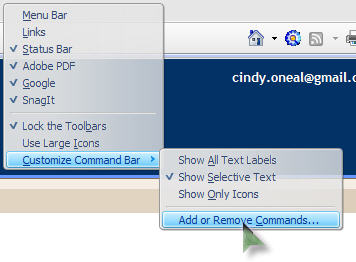
Where's the EMail button? That's the first question I've had from a reader... To be honest, I had to do a little looking myself to find it. It isn't all that handy. If you are used to clicking a button from your Internet Explorer toolbar to get to your email, you will need to add it to that itty bitty toolbar to the right of your page tabs. Here's how... Right click any empty area above the web pages and choose Customize Command Bar, then click where it says Add or Remove Commands.

A new window will open. Find your email button in the left pane, click it, then click the Add button, then click the Close button. you will see your email button in your itty bitty toolbar then.

Sunday, November 05, 2006

AVG FREE Alert!

Turned on my machine this morning only to find a strange message from my AVG (free version) antivirus software suggesting my version (7.0 something) was about to be discontinued in January 2007. There was a link to more information about the new (not free) version 7.5. Well, I clicked the link thinking, "O Lord! The free ride is over for AVG!"... not so, dear readers... Although I DID have to look for it, there was a link for the FREE version of 7.5... Whew!
Not only is there a new version of AVG FREE Antivirus, but they have a NEW anti spyware software (FREE Edition also) available. I haven't given that a try yet, but will soon.

Thank you AVG! Here is a link to the latest and greatest FREE AVG offerings.

Saturday, November 04, 2006

Internet Explorer 7

You should be seeing the latest and greatest (hehehe) Internet Explorer appear in your updates soon. Go ahead and accept it. I just did last night and at first glance, it looks pretty good.... Very "Firefoxy" if I do say so myself... At least it is no longer in Beta stage, so you should have no problems with it messing anything up on your system. Mine seems to be fine so far, and I am looking forward to checking it out.

I have updated my Computer Resources page. Check it out. There is a link to Dave's Computer Tips... really good stuff!

Friday, October 27, 2006

Photoshop and TwistedBrush Magic

More doodling with TwistedBrush (you are going to LOVE the November newsletter!), added the text and frame enhancements with Photoshop and voila!

Wednesday, October 25, 2006

The Great State of Texas

We are having a great trip... One of the most amazing observations I have made while driving through Texas is the miles and miles of nothing but space... Beautiful country! Makes me proud to be an American!

Tuesday, October 17, 2006

TwistedBrush Variation

This one is completely with TwistedBrush (frame and all)

Colour Play

Background created with TwistedBrush (I'm loving it more every day). The rest done with Photoshop. ENJOY!

Friday, October 13, 2006

Another TwistedBrush Wallpaper

I am having so much fun with TwistedBrush!
TwistedBrush Wallpaper

Road Trip Prep

We are preparing for a nice road trip across Oklahoma and Texas. Of course little Trixie (the laptop) will be going with us. I've even got a power adaptor for the car so I can hook up in the back seat and fiddle with the machine all I want. A little portable table helps... not sure if I want to try hooking up the tablet while the old man is driving or not... might be a bit much. I do have to say though, working on a computer in the back seat of a car not only brings wierd looks from other vehicles, but it keeps me from giving friendly driving advice to the "road maniac" I have been married to for over 35 years.

Wednesday, October 04, 2006

TwistedBrush

AWESOME! The number of brushes had me drooling right away. I'm reviewing a great painting program for the November issue of CompuQuickTips. Now I've had a few days to actually give it my full attention, I can see so many uses for TwistedBrush. It isn't an image editing program, at least that doesn't seem to be the focus. The focus is more on actually creating art, and it fills your computer with all kinds of nifty tools to do just that.
Here is one of my favorites so far...
Enjoy!
*Hint* Click the image to see the full size view. Right click on the larger image and you can save it as your desktop wallpaper.

Sunday, October 01, 2006

The Monthly Routine

On the first day of every month, this is the cleanup I do to refresh the machines and prepare them for the next month of use and abuse:
  1. JV16 PowerTools (registry cleaner)... It will clean out all those useless and outdated registry entries in a very safe way. I trust it completely.
  2. Thorough Disk Cleanup. Right click My Computer, choose Explore... Then right click the C drive and choose Properties. Then click the Disk Cleanup button. Make sure you also click the More Options button and cleanup your System Restore.
  3. Defragment your hard drive after all the cleaning is done. This will close up any gaps left from deleting all those trash files and make your computer sooooo frisky! Diskeeper is my favorite defragmenting software to date.